 Nectar AI
Group Chats
A group chat is a conversation with more than one companion. The companions taking part are its cast.
Two ways to start one
Open a fantasy with several companions, or make your own.
A fantasy is a ready-made story setup. On Discover, select Fantasies, then open the filters and turn on Groups Only.
Choose a fantasy, read its description, and select Start Chat.
To make your own, choose two or more companions when creating a fantasy. See Fantasies.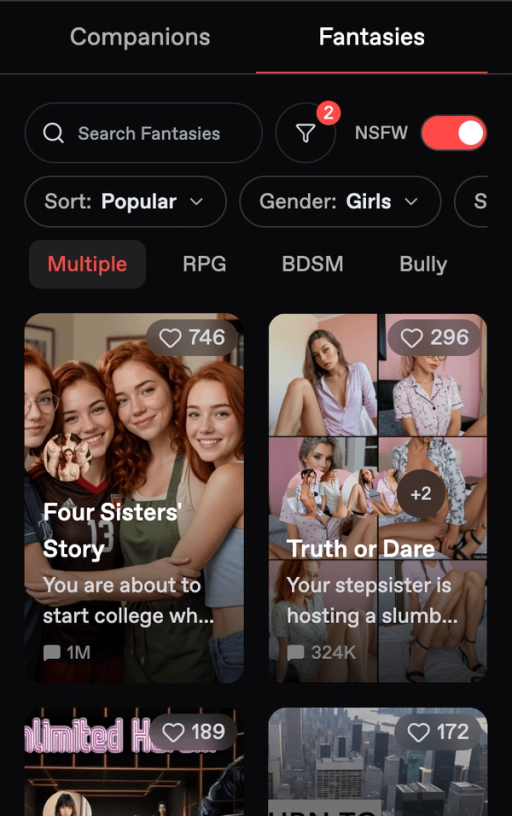
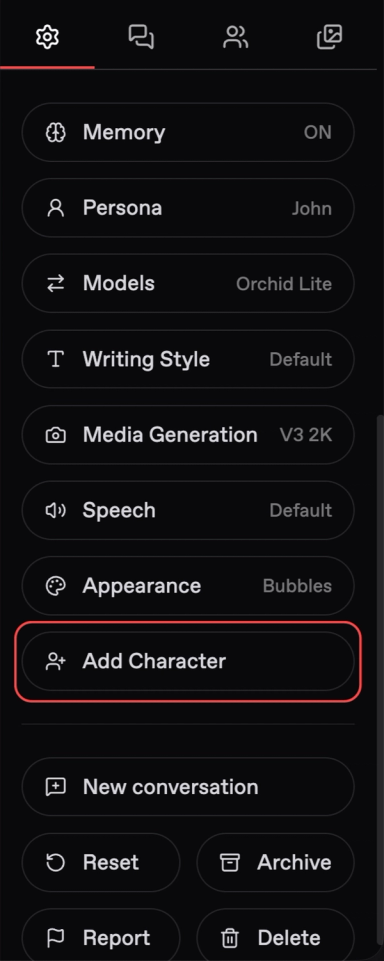
Add a character to a chat you’re already in.
Adding another character permanently turns the conversation into a group chat. The conversation stays a group chat even if you remove that character later.
Open Chat Settings, select Add Character, and choose the companion you want to bring into the story.
Cast size: A group chat can include up to 10 companions.
What changes with a bigger cast
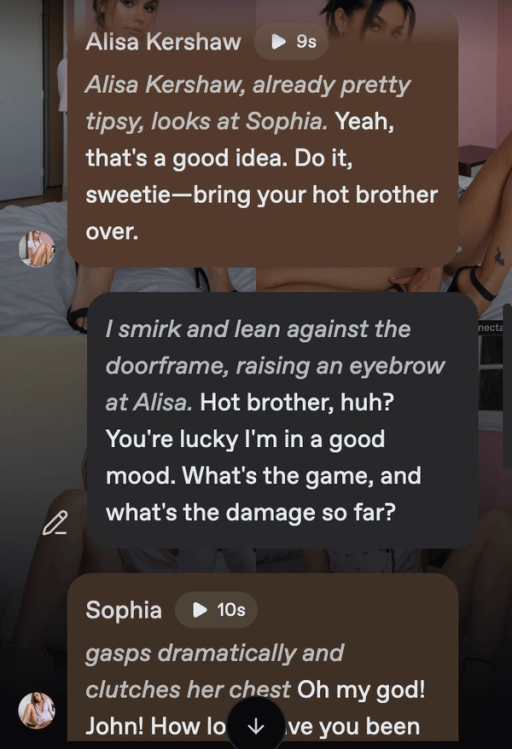
Your companions can talk to each other. They can argue, flirt, form alliances, or take different sides as the story develops.
Not everyone needs to reply at once. Let Nectar choose a speaker, or select the companion you want to hear from.
One message from you can lead to several companion replies. Only messages you send count toward your message allowance. Companion text replies have no separate charge.
Check the displayed price before a paid action.
Choosing who speaks
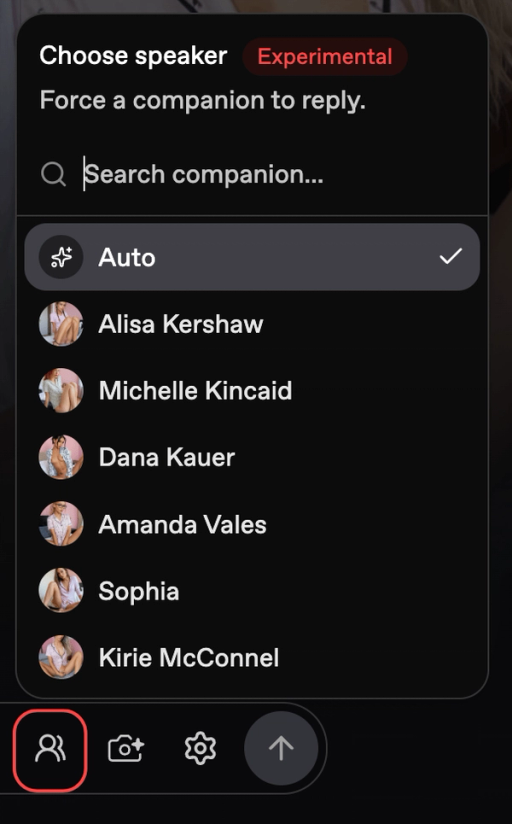
To direct the next reply:
Tap the people icon in the message bar.
Open Choose speaker.
Select Auto or a companion’s name.
Option | What it does |
|---|---|
Auto | Lets Nectar choose who replies |
A companion's name | Selects that companion for the next reply |
For example, choose Sophia when you want her answer to a question. Return to Auto when you want Nectar to choose the speaker again.
Keeping group chats under control
Choose a model that suits your story. Compare models using the same cast and a similar scene. Keep your other settings the same so you can judge the difference. See Chat Models.
Keep the scene focused. Start with two or three active characters while you get used to directing a group. Bring others into the action when they have a role to play.
Name who you’re talking to. “I turn to Sophia” gives the conversation a clear direction.
Use OOC to guide the scene. OOC means “out of character.” Type a direction in the message field, such as:
(OOC: only Sophia and Kirie are in this room)
For more examples, see Making Your Chat Better.
Power tip: Set the scene, then choose the speaker
Before you try this: Start a group chat and find Choose speaker.
If you want a scene focused on Sophia and Kirie:
Clarify the setting:
(OOC: only Sophia and Kirie are in the kitchen. Everyone else is outside.)Choose Sophia in Choose speaker.
Give her something specific to answer:
“Sophia, what did you find in the drawer?”Choose Kirie for her reaction, or return to Auto.
Check whether the next replies follow the setting and speaker choices before adding another direction.
Asking for a photo? Put the companion’s exact card name first, followed by a colon and your request. For example:
Sophia: send me a photo of you at the bar.
Start a fresh conversation for a new setup. A new conversation starts without memories from the earlier chat. Introduce the cast, setting, and any past events you want to include.
Last updated on