 Nectar AI
Making Your Chat Better
Shape your conversation with the chat buttons, settings, and messages you write. Change one thing at a time so you can tell what works best for you.
Use the Chat Buttons
These sit under each reply and in the text box. Here's when to reach for each one:

Regenerate
Tap the rounded arrow to explore a different reply. It helps find a quick way to respond that fits the tone or direction you want.

Continue button
Tap Continue and your companion will keep the story going without you typing. You can use Continue up to eight times in a row.
Use it to hear the next part of a story or let your companion develop the scene.
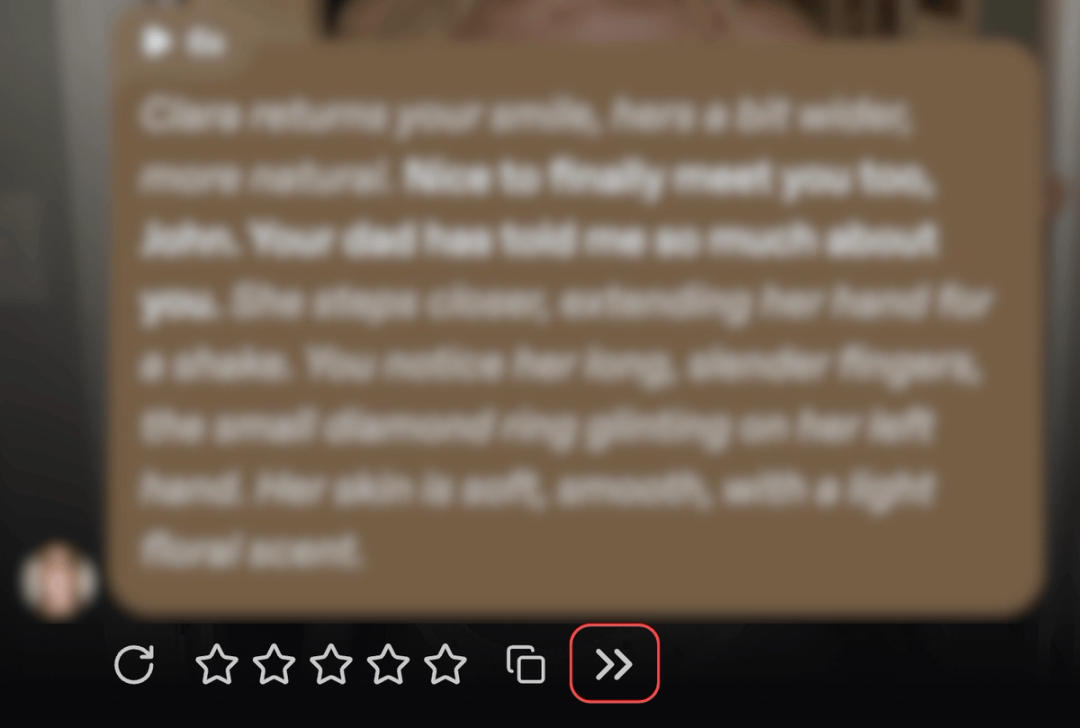
Message suggestions
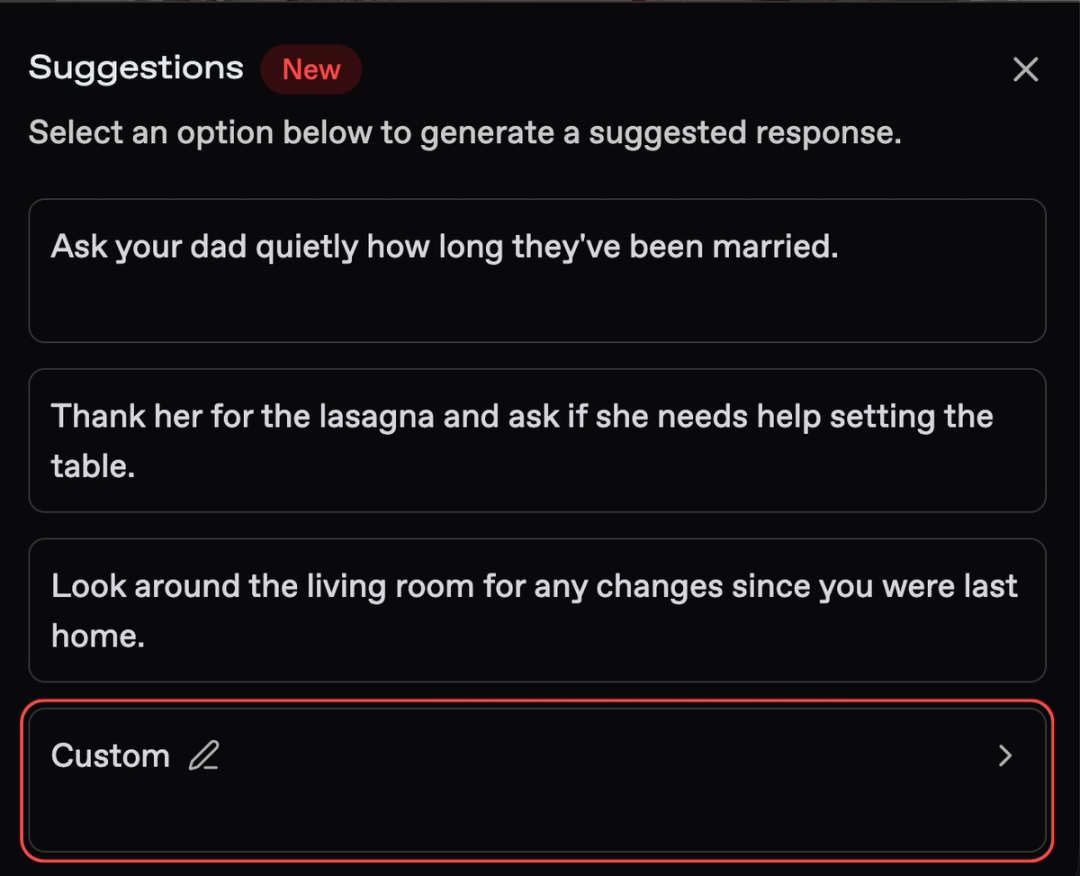
The lightbulb in your message field opens AI-written reply suggestions. Read the options and choose one that fits how you want to respond.

For a direction of your own, look for Custom in the suggestions panel. For example, you could ask for a playful reply that invites your companion to tell you more.
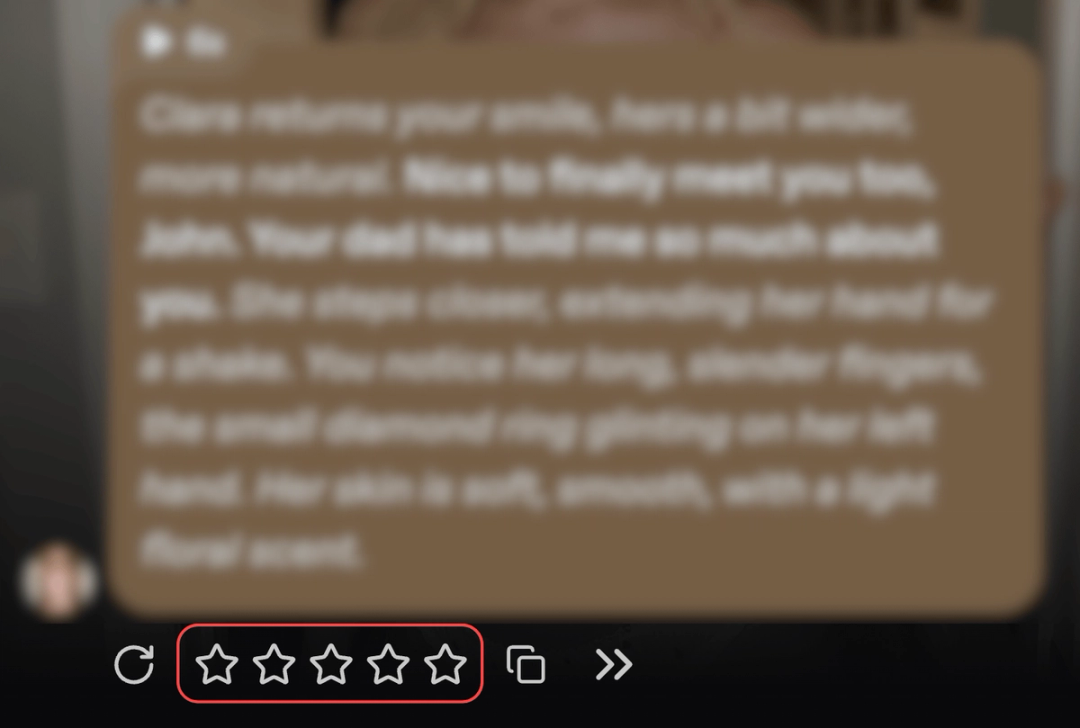
Message ratings
Use the star icons beneath a companion’s message to rate its quality.
Adjust Your Chat Settings
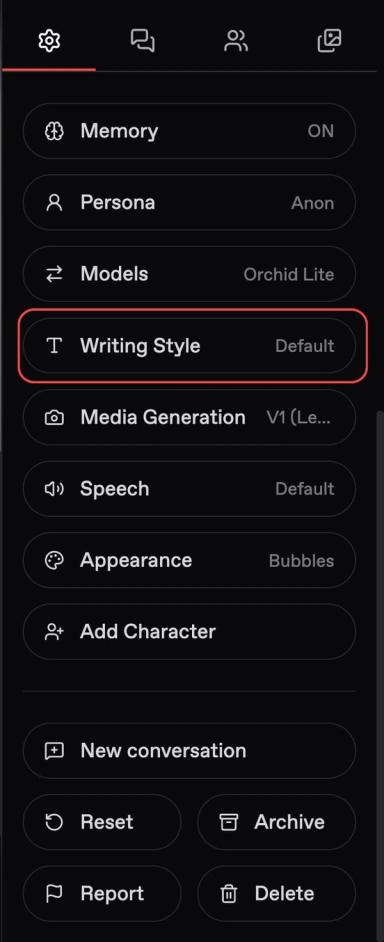
Tap the Gear to open Chat Settings. You can also reach it from the Settings tab of the customization panel.
Open Writing Style for two controls:
Response Length: Choose how much your companion writes.
Custom Instructions: Describe how you want your companion to respond.
Response Length
In Writing Style, choose your preferred reply length for your conversation.
Setting | Feels like | Best for |
|---|---|---|
Short | Quick texts, snappy back-and-forth | Casual conversation, banter |
Default | Balanced replies | Everyday chatting |
Long | Full scenes with detail and narrative | Roleplay, storytelling, immersive scenarios |

Custom instructions
In the same Writing Style panel, use Custom Instructions to set preferences for this conversation. The field allows up to 1,000 characters.
Examples:
“Always respond in first person.”
“Never narrate or describe my character’s actions.”
“End every reply with an action or a question I can respond to.”
To try an instruction:
Enter one clear preference in Custom Instructions.
Save it, then reopen the panel to check that it saved.
Send a message that gives your companion a chance to use it.
Refine the wording to get closer to the result you want.
For example, after adding “Never narrate or describe my character’s actions,” send:
“You hear a knock at the door. What do you do?”
Look for a reply that describes your companion’s response and leaves your next action to you.
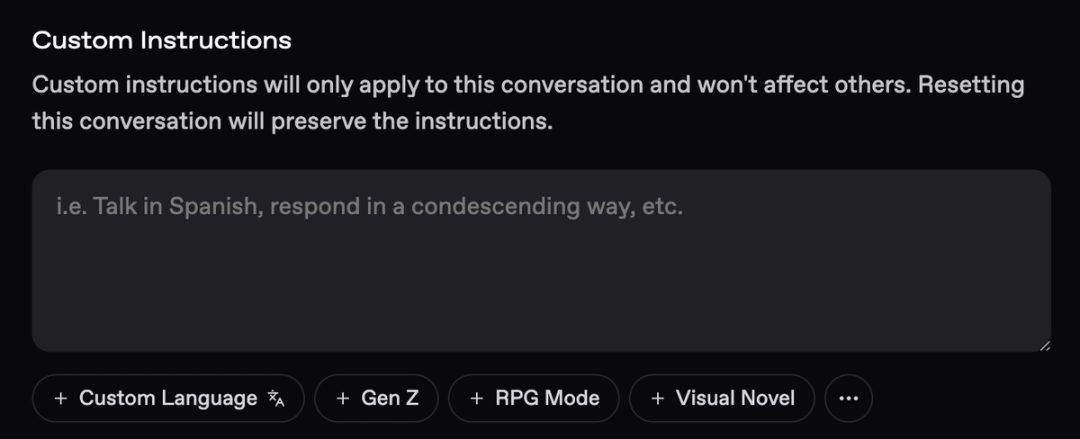
You’ll also find preset chips at the bottom. These offer ready-made instructions.
Power tip: Give your instructions one clear direction
Before you try this: Save one instruction and try it in a few replies.
“Keep replies brief” and “Describe every detail” ask for different results. Choose the preference that matters most to you, then build on it.
Appearance
Open Chat Settings → Appearance to choose how your conversation looks.
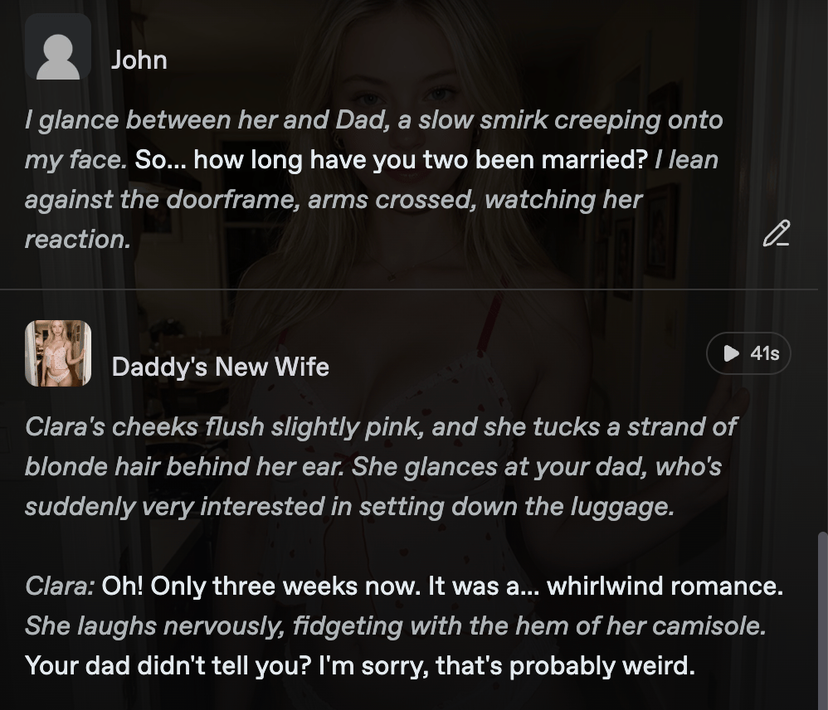
Chat Layout
Choose the reading style you prefer:
Bubbles: Classic aligned messages.
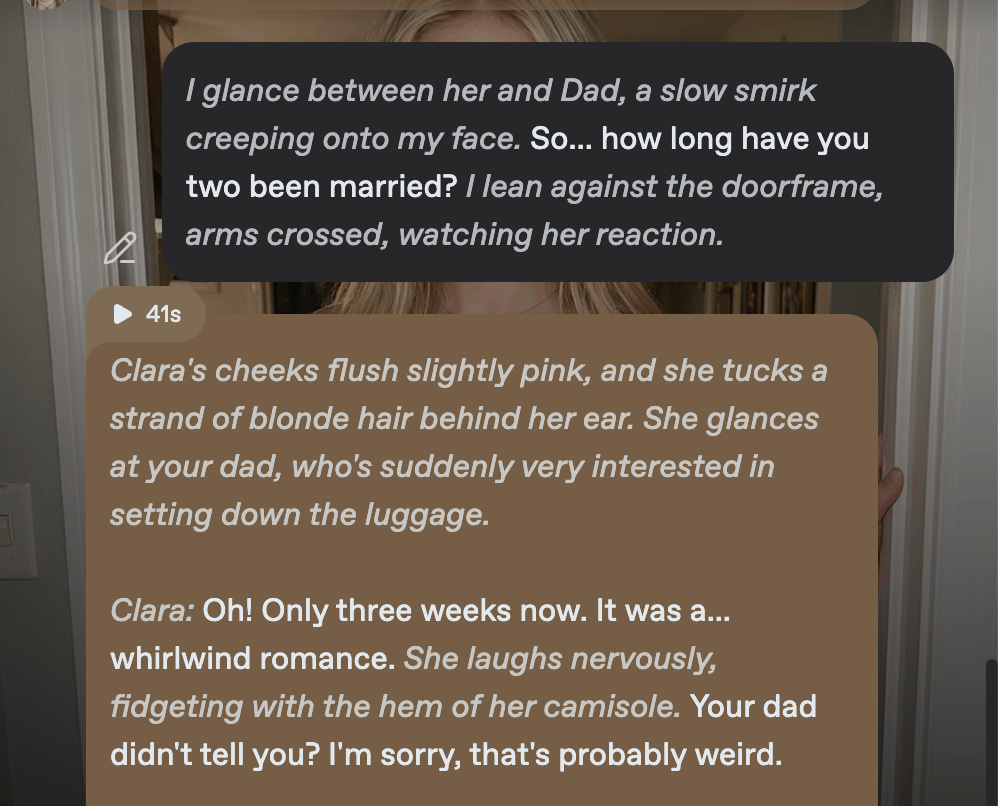
Novel: Continuous text, like reading a book.
Chat Background
In the same Appearance panel, choose a background for your conversation. Review Auto, Pattern, and Custom Image to see the available options.
Models and Memory
Models are the AI options that write replies. Memory helps your companion keep track of key details.
Both sit in Chat Settings. Each has its own guide: Chat Models and Memory.
Typing Your Messages
OOC commands
OOC means “Out of Character.” Use it to guide the scene rather than speak as your character.
Type the instruction in your usual message field. For example:
(OOC: we're in the kitchen now)
Use OOC to... | Example |
|---|---|
Change the setting |
|
Clarify a detail |
|
Guide the pacing |
|
The more specific your direction, the easier it is to assess the next reply.
Action text
Separate what your character does from what they say. Try putting asterisks for actions and double quotes for dialogue:
*walks to the door* "Come in."
Check how your message appears in the chat. Keep the format consistent as you continue.
Power tip: Private thoughts
Before you try this: Establish who is in the scene and practice separating actions from dialogue.
If you write an internal thought, tell the AI that the companion cannot hear it:
(OOC: this is a private thought, your character can't hear it)This sets a storytelling boundary. The text is still available to the AI. To reinforce the distinction, describe what your companion can actually see or hear.
When your companion repeats itself
What you see | What's happening |
|---|---|
Your own words come back | The companion echoes your message or action before responding |
The same phrase ends every message | One line has turned into a verbal tic |
The story stops moving | Replies restate the same beat instead of advancing it |
The greeting comes back | The opening message reappears later in the chat |
Work through these in order and stop when the conversation moves in the direction you want.
Regenerate. Try a different reply. If you want more variety after that, move to step 2.
Send an OOC correction. Describe the response you want. For example:
(OOC: don't repeat my words back to me, react to them instead)Add a custom instruction. Use this for a preference you want throughout the conversation.
Instead of
Write
"Don't repeat yourself"
"React to my actions in your own words. Never quote my phrasing back to me."
"Stop using the same line"
"Vary how you end each message. Don't reuse the same closing line."
"Move the story along"
"Advance the scene in every reply with a new detail, action, or line of dialogue."
Try a different model. Keep your instruction the same so you can compare the replies. See Chat Models.
Start a fresh conversation. Open Chat Settings → New conversation. Introduce the scene and the details you want to establish. See Memory for guidance on key details.
Use another specific OOC direction whenever you want to steer the scene. Change one instruction or setting at a time so you can tell what helped.
If an instruction doesn't stick
Start by checking that your custom instruction was saved. Then check that your instructions point toward the same result.
Describe something you can recognize in the next reply. For example, “Leave my character’s actions for me to write” gives clearer direction than “Give me more control.”
Instructions guide replies, but results can vary. Refine the wording or try another model to find the style you prefer. Check the displayed price before a paid action.
Quick fixes
Problem | Fix |
|---|---|
You want a different reply | Tap Regenerate |
Replies are too short or too long | Change the length under Chat Settings → Writing Style |
You want a reply to continue | Tap Continue |
You want to reinforce the character’s behavior | Send a specific OOC direction |
The AI narrates your actions | Try: “Never narrate or describe my character’s actions.” |
You want more variety | Try Regenerate once, then follow the steps above |
The companion echoes your words | Try: “React to my actions in your own words.” |
You want the story to move forward | Ask for a new detail, action, or line of dialogue |
You want closer instruction following | Check that your instructions agree, then try a different model |
Custom instructions aren’t taking effect | Reopen Writing Style and check that the text saved |
Optional tool
Before you try this: Get comfortable with Nectar’s built-in chat controls.
Chat Toolkit is a Chrome extension listed in the Community tab. Check its current description and permissions before installing it.
Last updated on