 Nectar AI
Memory
Memory helps your companion keep track of key details, such as your character’s name, relationships, and story events.
Open a conversation, tap the gear for Chat Settings, then select Memory.
Turn on Memory so your companion keeps key details and sees twice as many messages. It works best in a fresh chat.
Group chats have a Memory panel too.
What memory does
Your companion uses recent conversation text to write replies. This is called context. Stored memories keep selected details available for reference as the conversation develops.
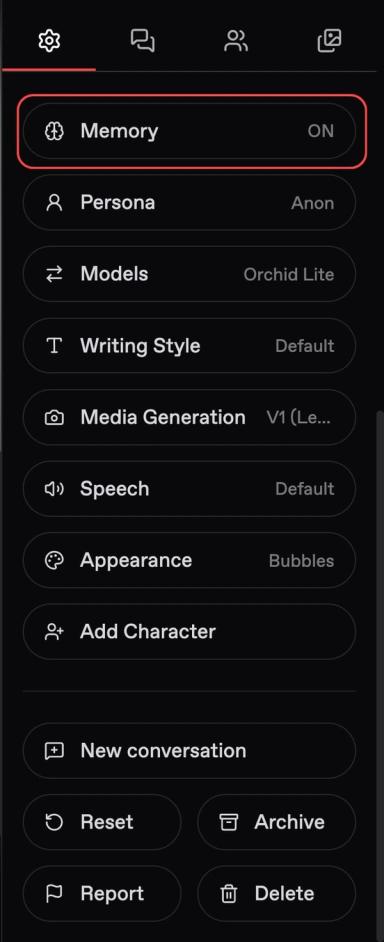
Memory has two separate switches:
Setting | What it does |
|---|---|
Enable Memory | Lets your companion reference stored memories |
Automatic Creation | Creates memories from details in your conversation |
How it works
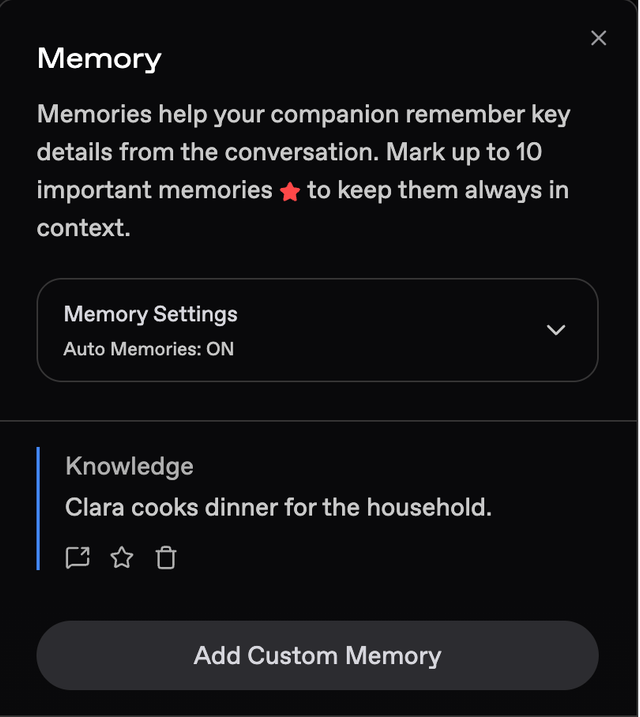
Automatic Creation can capture details from your conversation, such as your character’s name or a major story event. Review the memory list to see what has been recorded.
You can also add a detail yourself:
Open Chat Settings → Memory.
Tap Add Custom Memory.
Write the detail you want to see in future replies.
Save it and check that it appears in the list.
Custom memories can contain up to 200 characters. Keep each one focused, like:
"John is a firefighter who works night shifts."
Name the person and state the fact directly.
Less useful | Clearer |
|---|---|
"He works late, so remember that." | "John is a firefighter who works night shifts." |
"They know each other well." | "John and Mika have been close friends for five years." |
Save details that will matter again. Keep a passing action, such as opening a door, in the conversation unless it changes the story.
Power tip: Try the memory in a scene
Before you try this: Add a custom memory and check that Enable Memory is on.
After saving John’s work schedule, ask: "When should we plan dinner around my shifts?"
Look for a reply that takes the night shifts into account. If you want a clearer connection, refine the memory or mention the relevant detail in your next message.
High Importance
Star a memory to mark it with High Importance. Use this to prioritize details that matter most, such as your character’s name, a relationship status, or a key story event.
Star up to 10 memories. Starred and custom memories are counted separately.
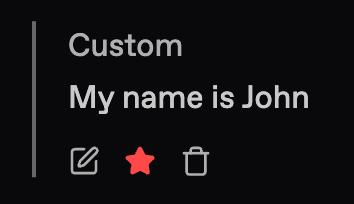
Choose facts that you want to guide the ongoing story. Review your starred memories as relationships and events change.
Managing memories
Use the Memory panel to review your saved details and update them as the story develops.
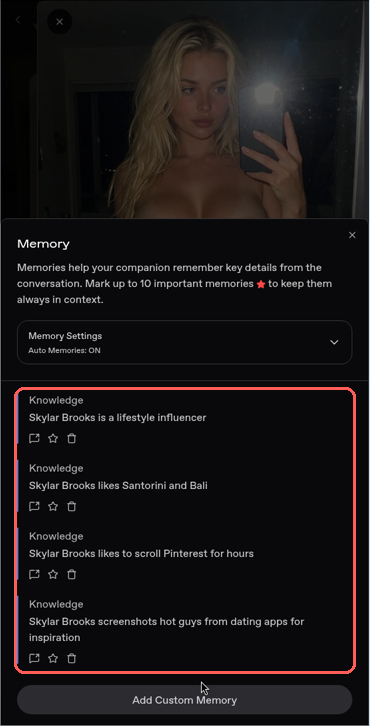
A new conversation does not carry memories from an earlier chat. Reset permanently deletes that conversation’s memories. Archive preserves them.
Edit an outdated detail. If John changes jobs, update his existing work memory.
Keep one clear version of a fact. Check for an older entry before adding its replacement.
Review selected entries before deleting. Check the control and any confirmation before proceeding.
Check a source link when one is available. It can help you understand the conversation behind a memory.
Power tip: Keep the current facts consistent
Before you try this: Review the existing memory list.
If one entry says "John works night shifts" and another says "John now works days," update the older entry so the current schedule is clear.
Before using Reset, Archive, Delete, or a history-trimming control, review its description and confirmation. Keep a separate copy of any details you want to preserve.
Context windows
The context window is the amount of text the AI can use when writing a reply. Think of it as a working view of the conversation.
A larger window can accommodate more text. Stored Memory provides a separate way to make selected details available.
Plan | Context window |
|---|---|
Premium | 8K |
Pro | 16K |
Ultimate | 64K |
Context is measured in tokens, which are pieces of text. A token may be a word, part of a word, or punctuation. K means thousand, so 8K equals 8,000 tokens.
There is no fixed number of messages per window. A brief exchange uses less space than a long, descriptive scene.
Text that can use that space includes:
Conversation history: Longer messages and replies take more space.
Companion details and instructions: These also contribute to the text used to guide replies.
Keep character details and instructions focused on what matters to your story. Use memories for clear facts you want your companion to reference.
Next: Personas · Creating a Companion · Stuck? Troubleshooting and Getting Help
Last updated on